
- 0
- 1,089 word
For millions of professionals and casual users alike, WhatsApp is no longer just a smartphone companion; it is a vital communication hub. While the platform—owned by Meta—remains fundamentally anchored to the mobile experience, the evolution of WhatsApp Web has transformed it into a powerhouse of desktop productivity. Whether you are managing complex group chats, coordinating professional workflows, or simply prefer the ergonomic comfort of a physical keyboard, shifting your messaging to a browser-based interface is a game-changer.
This guide explores the mechanics, security features, and strategic implications of using WhatsApp Web in 2024 and beyond.

The Core Facts: Why Transition to Desktop?
At its core, WhatsApp Web mirrors the functionality of its mobile counterpart, offering a synchronized, real-time messaging experience directly within your browser. By leveraging your computer’s larger screen and keyboard, you can streamline the process of drafting long-form messages, managing file transfers, and organizing business contacts.
The primary advantage is seamless integration. Rather than breaking your workflow to reach for a phone buried in a bag or left charging across the room, WhatsApp Web maintains your digital presence exactly where your work is happening. The platform supports all major browsers—including Chrome, Safari, Firefox, Edge, and Opera—ensuring that regardless of your operating system, your communication stays fluid.

Chronology: From Dependency to Multi-Device Independence
To understand the current state of WhatsApp Web, one must look at its technical evolution. In its infancy, WhatsApp Web acted merely as an extension of the mobile app. It required a constant, active connection to your smartphone; if your phone lost battery or disconnected from Wi-Fi, the web session would instantly drop.
The Shift to Multi-Device Support
Meta fundamentally altered this architecture with the introduction of multi-device support. Today, the browser-based client functions as an independent node. Once you have performed the initial handshake via your smartphone, the web interface can function independently for extended periods, even if your phone goes offline. This milestone was crucial for professional adoption, as it removed the volatility that previously hampered desktop users.
Feature Parity
Over the last 24 months, Meta has aggressively pushed feature parity. Today’s web version is no longer a "lite" experience. Users can now:
- Send and receive video messages.
- Utilize self-destructing voice messages.
- Edit sent messages—a critical feature for maintaining professional accuracy.
- Access advanced privacy settings directly from the desktop browser.
Supporting Data: Security and Setup Protocols
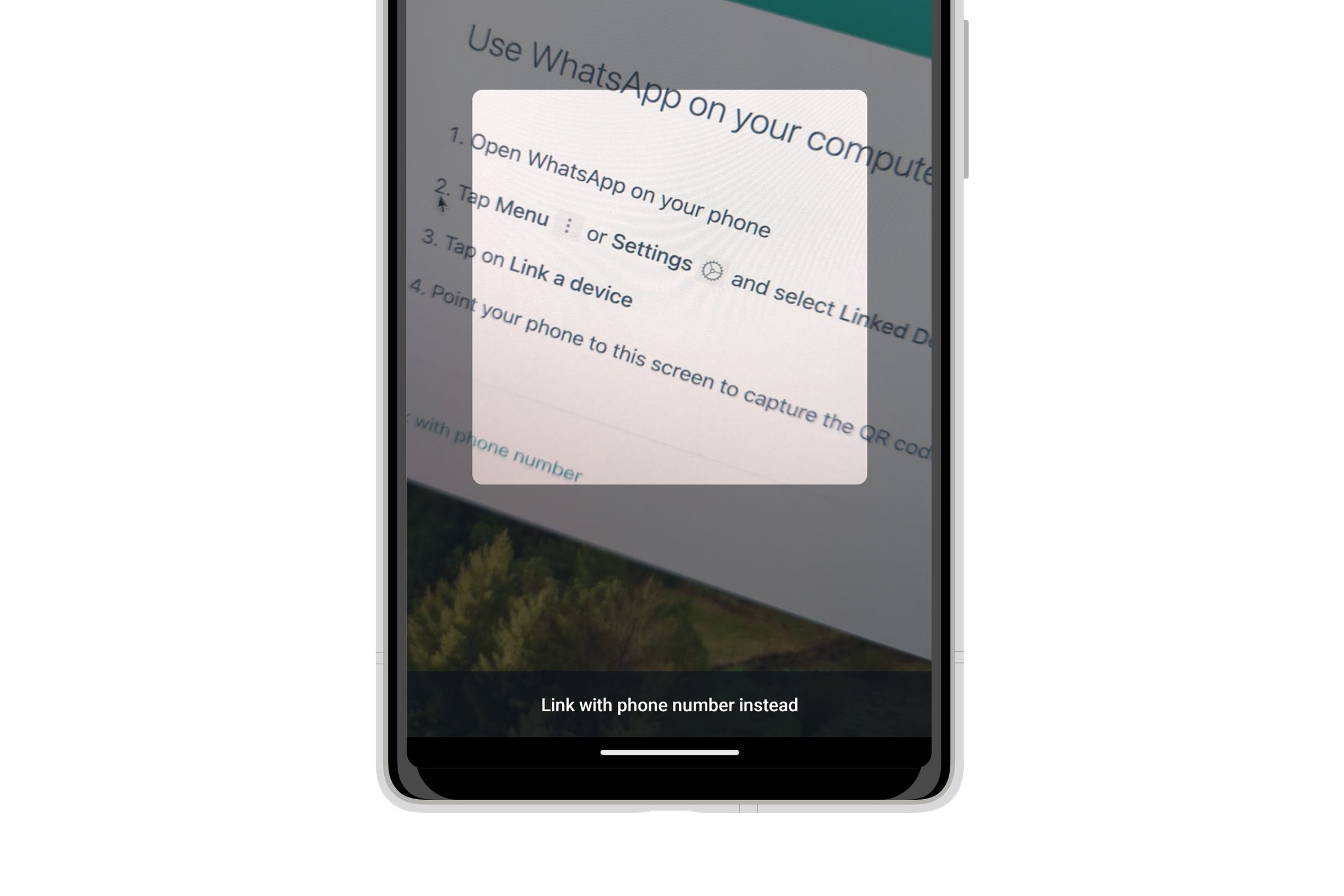
Because WhatsApp accounts are anchored to phone numbers rather than traditional email-and-password combinations, security relies on an encrypted QR-code handshake. This method ensures that only the authorized user can initiate a session, preventing unauthorized account mirroring.

Setting Up via QR Code
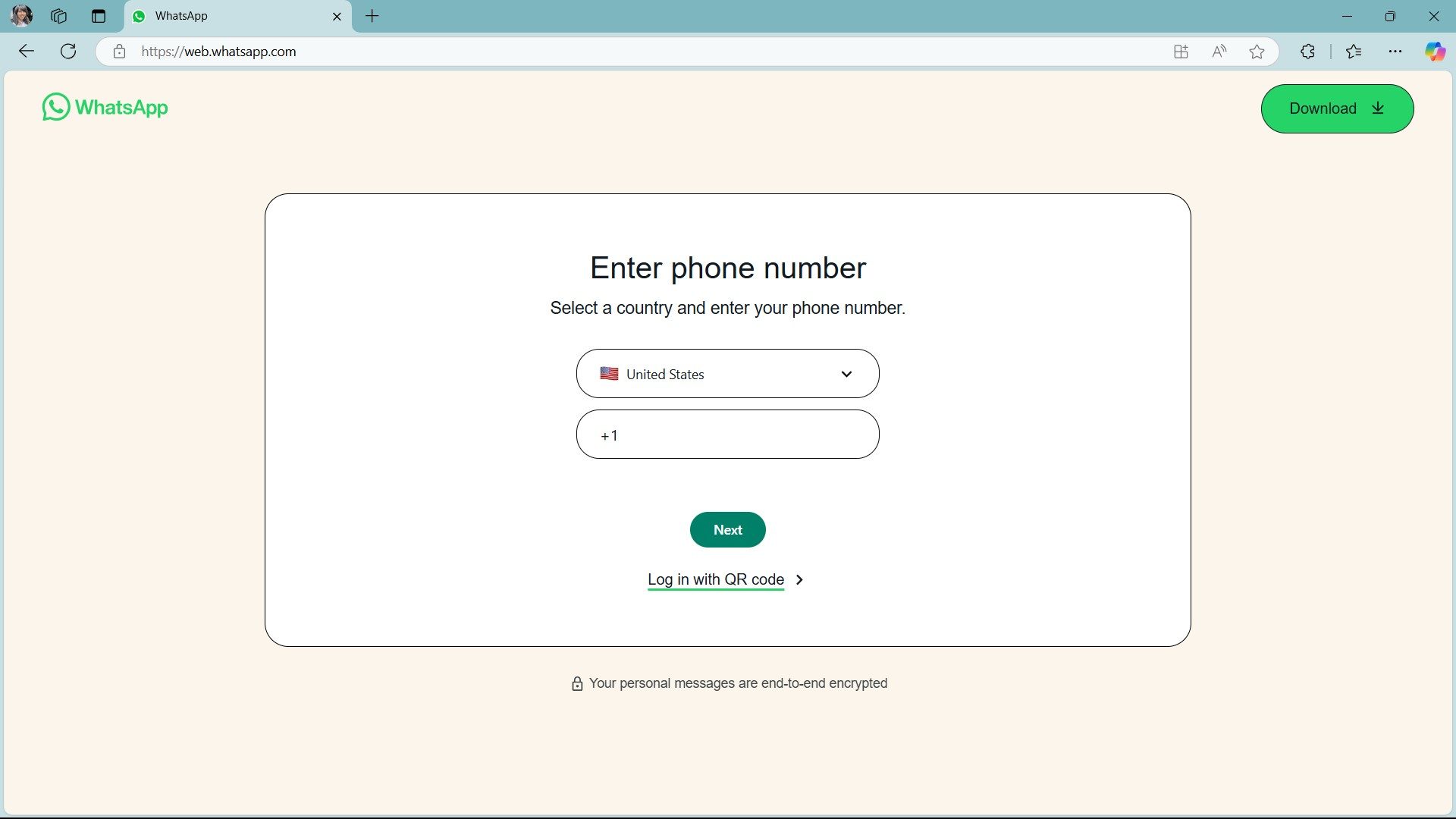
The process is designed to be frictionless. By navigating to web.whatsapp.com, you are presented with a unique, session-specific QR code.
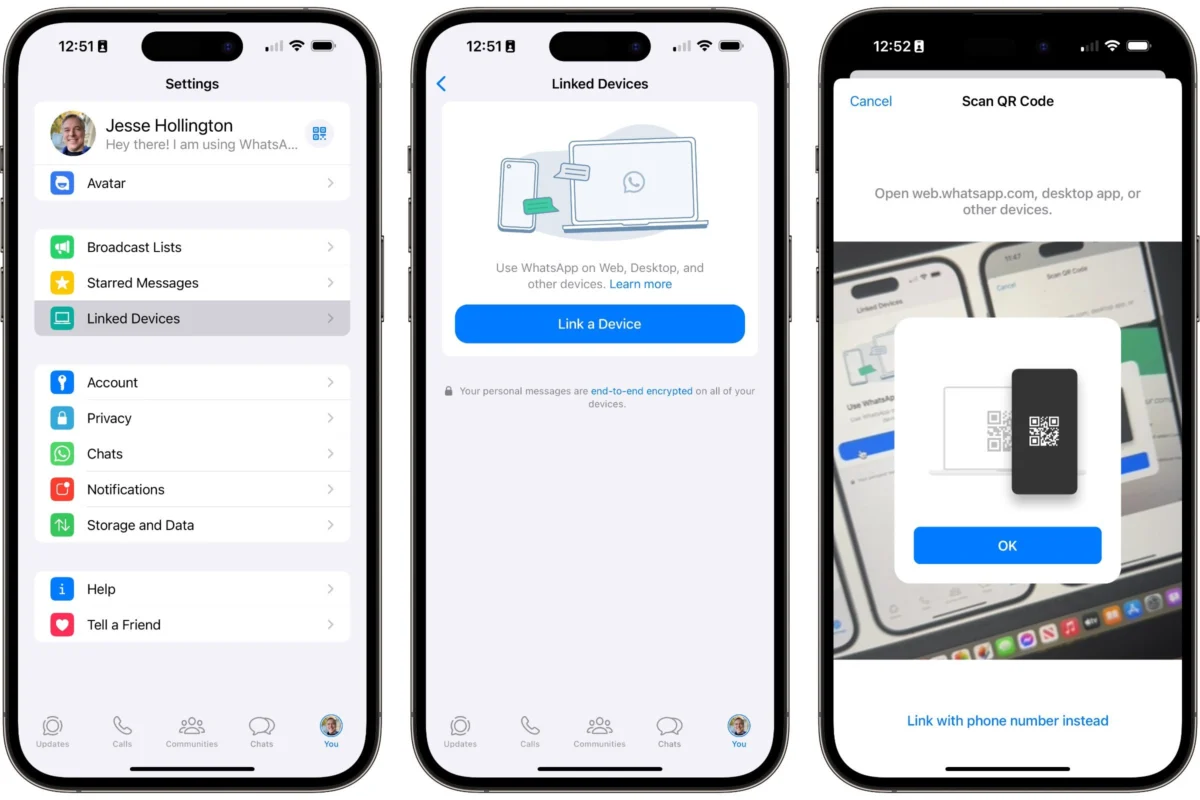
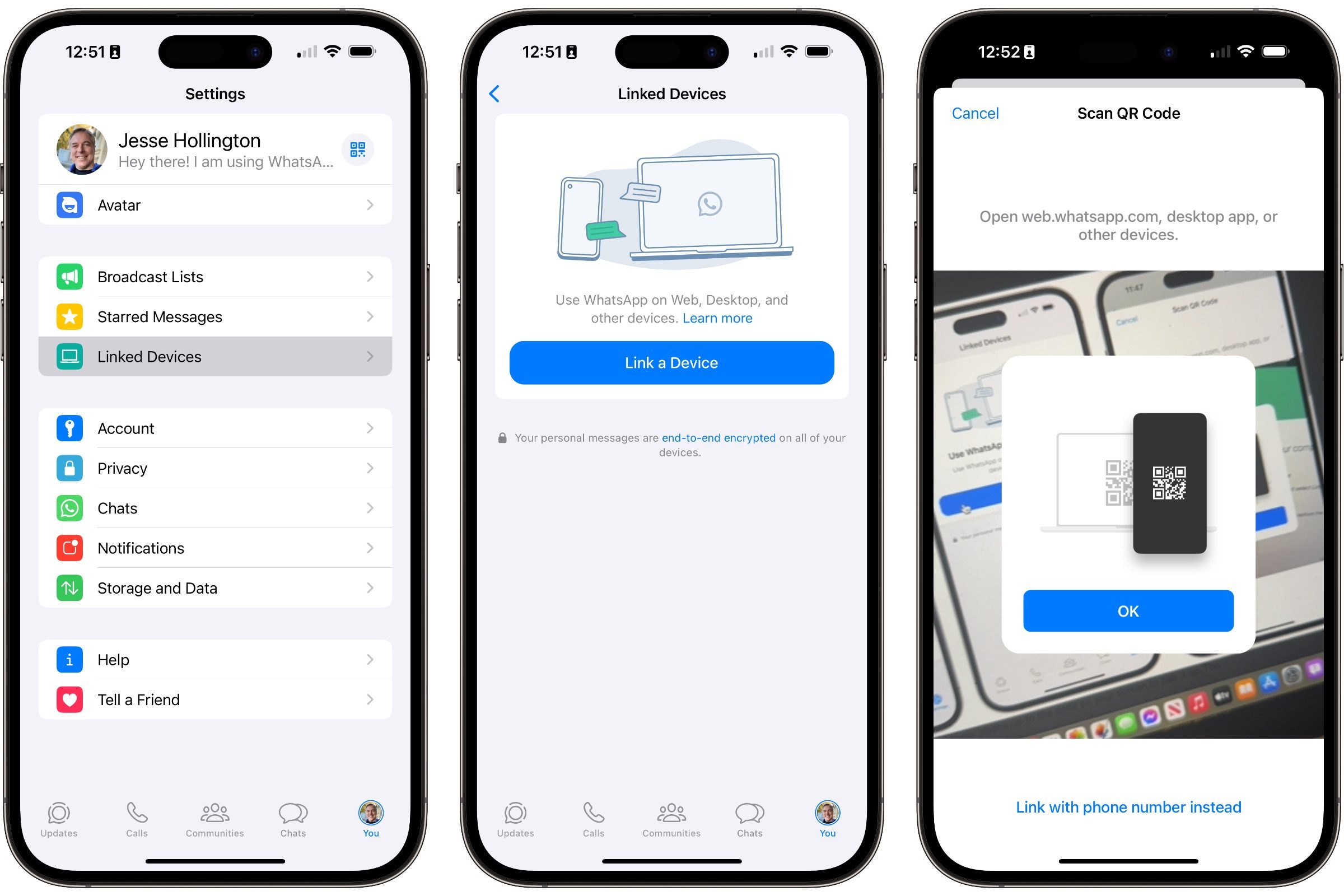
- On iPhone: Navigate to Settings > Linked Devices > Link a Device.
- On Android: Access the three-dot menu on the Chat screen, select Linked Devices, and tap Link a Device.
The authentication occurs via your device’s biometric security (Face ID or Touch ID/Fingerprint), ensuring that you, and only you, have authorized the bridge between your mobile account and your browser.
The "Phone Number" Alternative
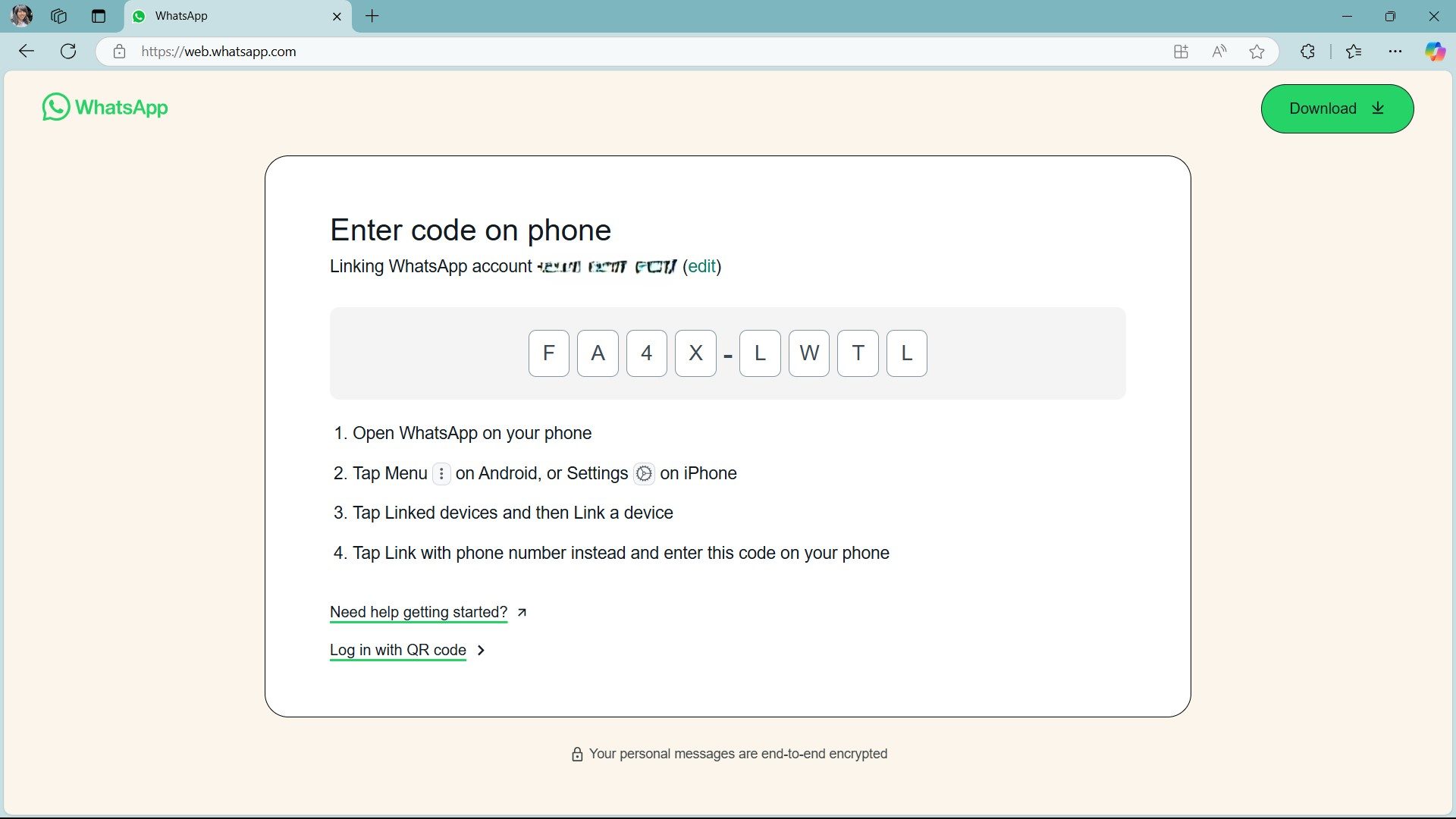
For scenarios where scanning a QR code is inconvenient or the camera hardware is obstructed, WhatsApp introduced a manual linking method. By selecting "Log in with phone number" on the web portal, users can receive an eight-digit alphanumeric code. This code is entered into the WhatsApp mobile app, which then performs a secure handshake, granting desktop access without requiring a camera scan.
Protecting Your Conversations: The App Lock Feature
One of the most significant concerns for desktop users is privacy in a shared or office environment. Leaving your messages open on a browser tab can be a security liability. Meta addressed this by introducing an App Lock feature specifically for the web client.
Enabling Enhanced Privacy
You can now set a password that acts as a digital curtain for your desktop sessions.
- Navigation: Go to Settings > Privacy > App Lock.
- Functionality: Once enabled, the browser interface will require a specific password to reveal your message list. You can customize the inactivity timer, ensuring that if you step away from your desk, your communications remain shielded from prying eyes.
- Scope: Importantly, this password is local to the browser session. It does not synchronize with your phone or other linked devices, providing an added layer of compartmentalized security.
Official Responses and Strategic Implications
Meta’s shift toward making WhatsApp a "platform" rather than just an "app" has significant implications for enterprise communication. By prioritizing desktop access, the company is positioning WhatsApp as a direct competitor to Slack and Microsoft Teams in the SME (Small and Medium Enterprise) market.

Professional Implications
For businesses, the ability to utilize keyboard-driven communication while retaining the encryption standards of WhatsApp represents a balance between ease of use and security. The "Linked Devices" feature allows a single account to be linked across multiple platforms, facilitating a hybrid work environment where an employee can move from a desktop to a mobile device without losing conversation continuity.
Technical Limitations to Note
While the platform has matured, users should remain aware of a few constraints:
- Initial Authentication: You cannot register a new account on the web. A smartphone is still the foundational requirement for the initial account setup.
- Session Management: If you clear your browser cache or cookies, the session will expire, necessitating a re-link via your phone.
- Local Storage: Because of the end-to-end encryption protocols, messages are not "stored" in the cloud in the traditional sense; they are synchronized between your local devices. If you lose access to your phone permanently, migrating your chat history requires careful backup management via iCloud or Google Drive.
Conclusion: Optimizing Your Workflow
Mastering WhatsApp Web is about more than just convenience—it is about reclaiming your time. By treating the browser client as a primary terminal for your communication, you reduce the "context switching" that often fragments a workday. Whether you are using the advanced search features to find historical data, managing multiple group projects, or simply leveraging the App Lock to keep your conversations secure, the desktop interface provides a level of control that the mobile app simply cannot match.
As Meta continues to roll out updates, we can expect even deeper integration with business tools. For now, the combination of multi-device stability and robust privacy controls makes WhatsApp Web one of the most reliable professional communication tools currently available. Ensure your desktop environment is secure, keep your browser updated, and enjoy the efficiency of a truly connected workflow.
Author

Related Posts
The Dawn of the Gemini Era: Everything You Need to Know About the New "Googlebook" Ecosystem
- 0
- 1,081 word
In a landmark presentation during The Android Show, Google has officially unveiled a paradigm shift in personal computing: the "Googlebook." Moving beyond...
Read out all
The High-Stakes Storage Dilemma: A Deep Dive into the LaCie 8Big Pro5
- 0
- 1,266 word
In an era where data generation has reached unprecedented levels, the demand for reliable, high-capacity external storage has never been greater. For...
Read out all
Is a New Nest Hub on the Horizon? "Google Home Display" Surfaces in App Code
- 0
- 1,387 word
The smart home landscape, which once seemed to be moving toward a unified future, has seen a period of stagnation regarding dedicated...
Read out all
Amazon Unifies AI Strategy: Introducing ‘Alexa for Shopping’ to Bridge the Gap Between Smart Homes and E-Commerce
- 0
- 1,180 word
In a significant strategic pivot, Amazon has announced a major consolidation of its artificial intelligence initiatives. The e-commerce titan is effectively dismantling...
Read out all
Meta’s "Muse Spark" AI Revolution: Bringing Superintelligence to Your Smart Glasses
- 0
- 1,201 word
In a definitive move to cement its position at the forefront of the consumer artificial intelligence race, Meta has announced the impending...
Read out all
Apple TV+ Greenlights Second Season of Hit Comedy ‘Margo’s Got Money Troubles’ Ahead of Season Finale
- 0
- 1,312 word
In a decisive move that underscores the streaming giant’s commitment to premium, talent-driven content, Apple TV+ has officially announced the renewal of...
Read out all